.Net, C#, UI, WinApi, WPF

Getting Windows Snap to Play with WPF Borderless Windows

In making the Dragablz library I quickly realised I needed be able to push the tabs higher up the window as we see in Chrome, and also, to achieve the IE affect, I really needed Window transparency. Therefore I introduced DragablzWindow.

DragablzWindowSnap

The easiest way to do the above is set the WindowStyle to None. But this has immediate draw backs: no dragging and resizing. Getting the dragging up and running is pretty easy and well illustrated on the web:

MouseLeftButtonDown += (s, e) => DragMove();

But this only partially works with Windows Snap. The Window will snap; left, right, top/maximised. But you cant drag the maximised window down to restore it.

Snap Attack

So I had to blend some aspects of WPF and WinApi to achieve the full effect.

In the XAML template for DragablzWindow I placed a Thumb control behind the content. Note how the hit test is off:

<Thumb Style="{StaticResource InvisibleThumbStyle}"
       IsHitTestVisible="False"
       x:Name="PART_WindowRestoreThumb"/>
<ContentPresenter Margin="4"/>

The hit test is off so it doesn’t interfere with our DragMove. Until the Window becomes maximised. Once the Window becomes maximised we enable the thumb and listen to it’s drag delta. Monitoring the drag delta is where we perform our trick, sending a Windows message to restart the drag as usual, handing back off the Thumb, to an Api instigated drag. Basically a slight re-working of what happens inside Windows.DragMove:

private void WindowMoveThumbOnDragDelta(object sender, DragDeltaEventArgs dragDeltaEventArgs)
{
    if (WindowState != WindowState.Maximized ||
        (!(Math.Abs(dragDeltaEventArgs.HorizontalChange) > 2) &&
         !(Math.Abs(dragDeltaEventArgs.VerticalChange) > 2))) return;

    WindowState = WindowState.Normal;
    Native.SendMessage(CriticalHandle, WindowMessage.WM_LBUTTONUP, IntPtr.Zero, IntPtr.Zero);
    Native.SendMessage(CriticalHandle, WindowMessage.WM_SYSCOMMAND, (IntPtr)SystemCommand.SC_MOUSEMOVE, IntPtr.Zero);
}

Try this on for Resize

To make the Window resizable we get back to the WPF side of things, using another Thumb, this time laid over the content (instead of under). Applying a custom clip, we can make the thumb only hit-able around the border of the Window, leaving the behaviour of the remaining content intact:

protected override void OnRenderSizeChanged(SizeChangedInfo sizeInfo)
{
    var resizeThumb = GetTemplateChild(WindowResizeThumbPartName) as Thumb;
    if (resizeThumb != null)
    {
        var outerRectangleGeometry = new RectangleGeometry(new Rect(sizeInfo.NewSize));
        var innerRectangleGeometry =
            new RectangleGeometry(new Rect(ResizeMargin, ResizeMargin, sizeInfo.NewSize.Width - ResizeMargin * 2, sizeInfo.NewSize.Height - ResizeMargin*2));
        resizeThumb.Clip = new CombinedGeometry(GeometryCombineMode.Exclude, outerRectangleGeometry,
            innerRectangleGeometry);
    }

    base.OnRenderSizeChanged(sizeInfo);
}

We must now handle the sizing manually, based on how the user drags the thumb around. It’s worth seeing the source code to see how that’s handled.

The Result

A Window which supports:

  • Transparancy
  • Dragging
  • Resizing
  • Snapping
  • And, all of the cool tab features of Dragablz!

DragablzWindowSnap

Source Code

The DragablzWindow is part of the Dragablz project on GitHub. And the style is here.
 

.Net, C#, UI, WPF

Tool Window Enhancements

Time for another quick look at what’s happening with tool windows in Dragablz.

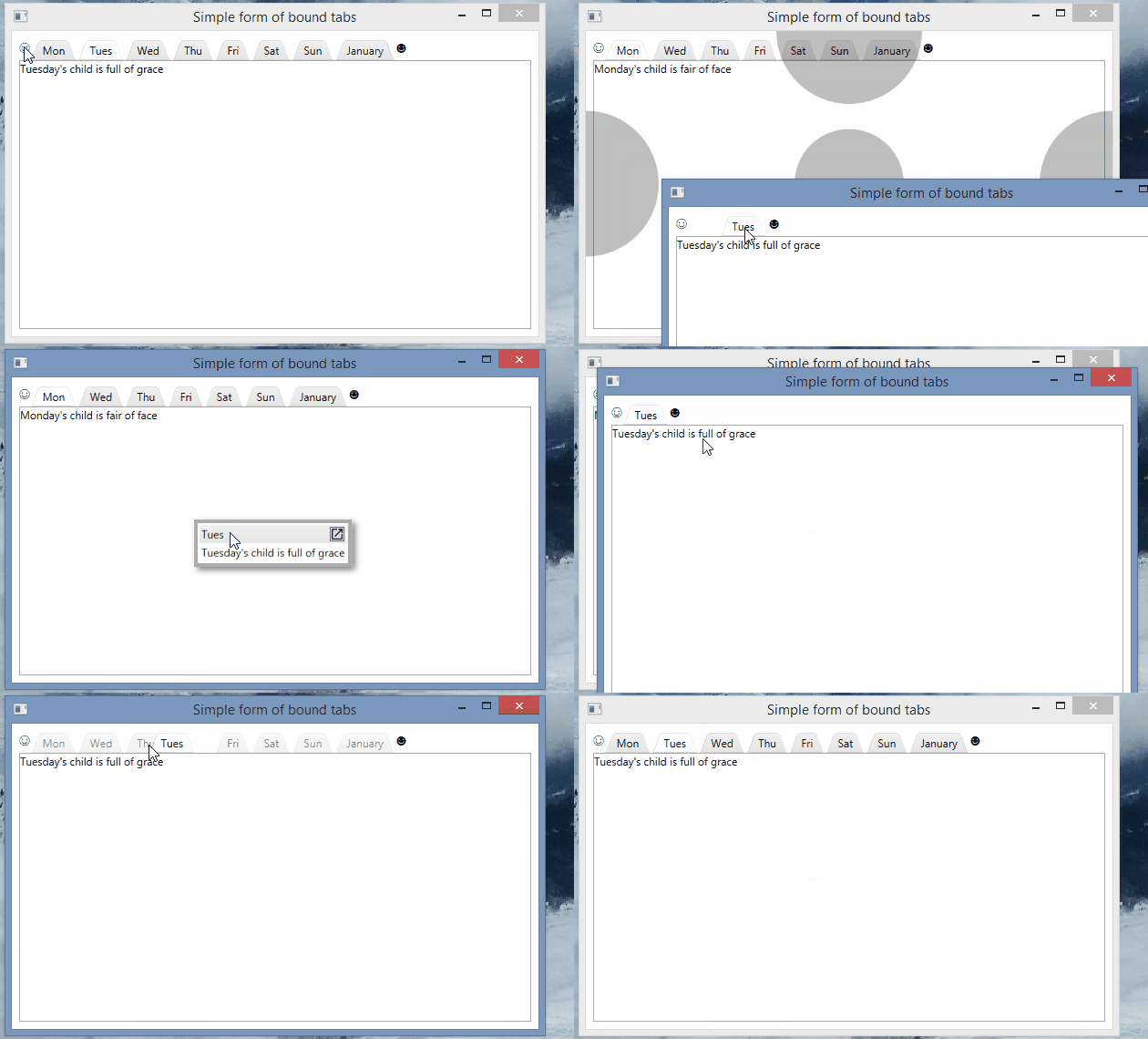
You can now take a tab, tear it out, and then drop it straight back in, but as a tool window…neat!  The tool window can then be popped out, back into a first class window and tab control of it’s own.

DragInAndOutOfToolWindows

At some point I will try and get floating tabs on the tool window layer, so you can organise even further, but still in the user-friendly manner I am trying to push in Dragablz.

Also, soon I hope to create a nice demo app mixing in a Modern UI theme courtesy of MahApps, demonstrating how to really re-ignite the power of desktop apps, so keep an eye out.

If you like this library please help motivate me and star it on GitHub!

.Net, C#, UI, WPF

Quick Look at Tool Windows

The Dragablz feature set is come together nicely now, it’s more than just a Chrome style tear out tab control.  Much more.  I just quickly wanted to provide a look at the way the DragablzItemsControl can be used to generate a tool window effect.   As always, there’s more to come!

Tool Windows
Tool Windows
.Net, C#, UI, Uncategorized, WPF

User Friendly Docking With Dockablz

We all have our favourite IDE, and they all provide pretty advanced docking features. Many control libraries in WinForms, WPF, Swing etc have provided this functionality over the years. But are docking suites – which can be complex, fiddly beasts – designed by and for developers what other users really want?

Remember when Google first released Chrome? Tearing tabs out immediately felt so easy and natural I wondered why no-one had done it before. It was one of those UX paradigms that just works. So in designing the docking library for Dragablz I wanted to reduce the complexity of what we have come to expect and provide a UX experience that is much more easy and free flowing. I’ve tried this before on an enterprise application I have been working on and it’s pretty successful with the user base.

The gif below illustrates the simplicity of having quick, easy access dock “zones” that are easy to throw a tab into, instead of having more, smaller, fiddly areas which are harder to hit in traditional setups.

Easy Docking With Dockablz

There’s still a little way to go to polish up the code but the basics can be seen in the demo project in the main solution in GitHub.

.Net, C#, UI, WPF

Getting Started With Dragablz TabablzControl

Assuming you have a reference to the Dragablz assembly, getting tear-able tabs from the TabablzControl is a doddle. The TabablzControl inherits from the standard TabControl so it should be pretty familiar. The first thing you have to look out for is the InterTabController property. You will need to provide an InterTabController instance to inform the tab that you are going to let the user tear out tabs:

<dragablz:TabablzControl Margin="8">
    <dragablz:TabablzControl.InterTabController>
        <dragablz:InterTabController />
    </dragablz:TabablzControl.InterTabController>
    <TabItem Header="Tab No. 1" IsSelected="True">
        <TextBlock>Hello World</TextBlock>
    </TabItem>
    <TabItem Header="Tab No. 2">
        <TextBlock>We Have Tearable Tabs!</TextBlock>
    </TabItem>
</dragablz:TabablzControl>

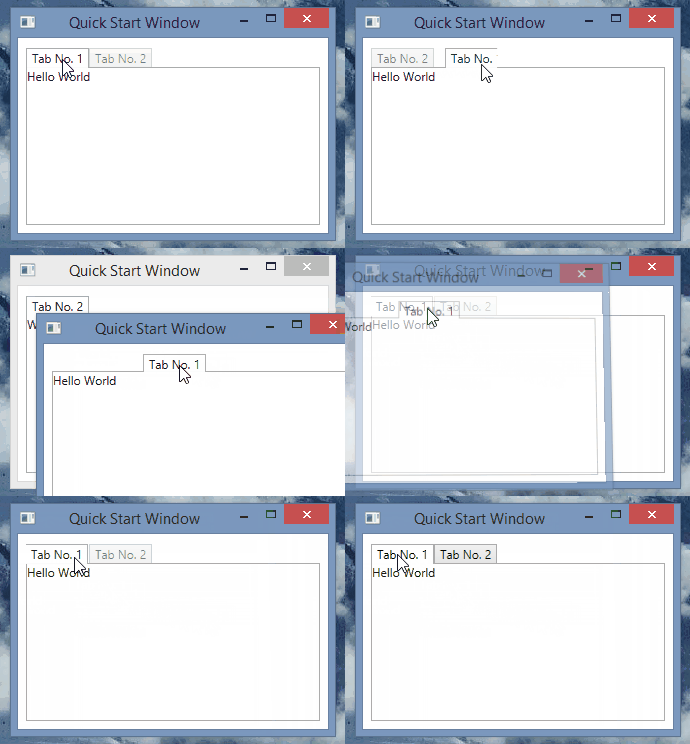
That’s all you have place in your XAML Window to achieve this:

Getting Started
Tearable tabs – quickly!

I am the master!

OK, so now I imagine you have some questions…such as, how does this work with bound data sources and MVVM?  Can I manage the window creation myself?

Well, jumping in and seizing some control for yourself is easy.

The key is setting the InterTabClient property on your InterTabController instance.

You’ll quickly see there are two interfaces involved:

  • IInterTabClient – let’s you intercept the requirement to create a new window (and tab control) when the user tears out a tab.
  • INewTabHost – the result of IInterTabClient.GetNewHost.  A simple implementation is provided: Dragablz.NewTabHost

The simplest implementation of IInterTabClient will look something like this:

public class MyInterTabClient : IInterTabClient
{
    public INewTabHost GetNewHost(IInterTabClient interTabClient, object partition, TabablzControl source)
    {
        var view = new MyWindow();
        return new NewTabHost(view, view.TabablzControl); //TabablzControl is a names control in the XAML
    }

    public TabEmptiedResponse TabEmptiedHandler(TabablzControl tabControl, Window window)
    {
        return TabEmptiedResponse.CloseWindow;
    }
}

If you expose an instance of your MyInterTabClient class from you view model, you can bind it into the TabablzControl, via the InterTabController:

<dragablz:InterTabController InterTabClient="{Binding MyInterTabClientInstance}" />

Now you should be on the road to integration with the rest of your application code or framework.  For more help take a look at the examples found in the GitHub project.


C#, UI, WPF

Dragablz TabablzControl is now on NuGet

After some fiddling with Git, TeamCity and NuGet, a package for Dragablz is now published.  Straight off the bat I must apologise for this only being a .Net 4.5 version; I know there is plenty of enterprise out there still on .Net 4.0.  A .Net 4.0 version will follow in due course…

For the console junkies:

PM> Install-Package Dragablz

The NuGet homepage is here.

Various improvements and documentation are on the way, so if you want Chrome style tearable tabs in your WPF app’ stay tuned!